

Published November 15, 2026
A professional business inbox starts with a domain, not a live website. You generally need a registered domain, but you can set up email before your website is live.
A custom domain helps customers recognize your business, while separate addresses for enquiries, sales, or support can keep messages organized. When comparing hosts, look beyond the monthly cost: mailbox storage, account limits, aliases, spam filters, security, and backups all affect whether a plan fits. This guide covers the setup steps and features to weigh when choosing an option for your business.
Key Takeaways
- Use a registered domain for a professional email address, even if your business website isn’t live yet.
- Protect mailboxes with strong passwords, two-factor authentication, spam filtering, and encrypted connections.
- Compare hosting plans by mailbox storage, account limits, aliases, security tools, backups, and cost.
- Consider managed web hosting when you want support with the technical side of your business website.
What is a business email address?
Business email hosting stores and delivers messages for addresses that use your domain, such as [email protected]. The hosting provider manages the mail servers, while you access each mailbox through a browser or email app. You don’t need a live website, but you do need a registered domain.
- Choose a domain. Purchase a name that matches your business, or use a domain you already own. A domain-based professional email address helps customers identify your organization. Before creating accounts, verify ownership through your email host’s setup process.
- Create mailboxes in cPanel. If your hosting plan includes email tools, sign in to cPanel and open its email account controls. Add an address, such as [email protected], then set a strong password and mailbox storage limit. Create separate accounts for distinct roles when different people need access.
- Connect the domain to the mail host. In your domain’s DNS settings, add the MX records supplied by the email provider. Add its SPF, DKIM, and DMARC records as directed: these records help receiving systems identify authorized senders and assess messages. Use the provider’s exact values; incorrect DNS entries can interrupt delivery or authentication.
- Move existing messages carefully. Add the old account to the new mail service or use its import tool to copy messages and folders. Keep the old mailbox active while copying, then switch MX records and test sending and receiving. Confirm older messages appear before ending the previous service.
- Test access and routing. Sign in from a computer and phone, then send a test message to an outside address. Check replies, spam placement, and each mailbox. Add aliases, such as [email protected], when several public addresses should route to one inbox.
Email security, encryption, spam protection, and backups
- Turn on two-factor authentication. Require a second sign-in step for each email account. A password alone can be exposed through phishing or reused credentials; two-factor authentication adds another layer. Protect the recovery method, too, so staff can regain access if they lose a device.
- Use strong passwords and encrypted connections. Choose a unique password for every mailbox, and change business email passwords every 3-6 months. Configure Outlook or another mail app to use SSL/TLS encryption. Avoid unencrypted IMAP port 143 and SMTP port 25, which can send passwords and messages in plain text. TLS 1.3 is described in RFC 8446.
- Configure spam and phishing controls. Enable the host’s spam filters, then train staff to pause before opening unexpected links or attachments. Don’t enter Microsoft or Workspace sign-in details after following an unfamiliar email link. Report fraudulent messages through the email service’s reporting tools.
- Plan for mailbox recovery. A backup is a separate copy of email data that can help restore messages after accidental deletion or account trouble. Review whether the plan offers email backup add-ons, what mailbox data they cover, and how restoration works. Test a recovery process before the organization depends on it.
- Secure every device. Protect computers and phones with screen locks, current software, and individual staff accounts. Remove access when someone leaves, and avoid shared passwords. For help coordinating website hosting and technical details, discuss your setup.
Business email hosting provider pricing and features
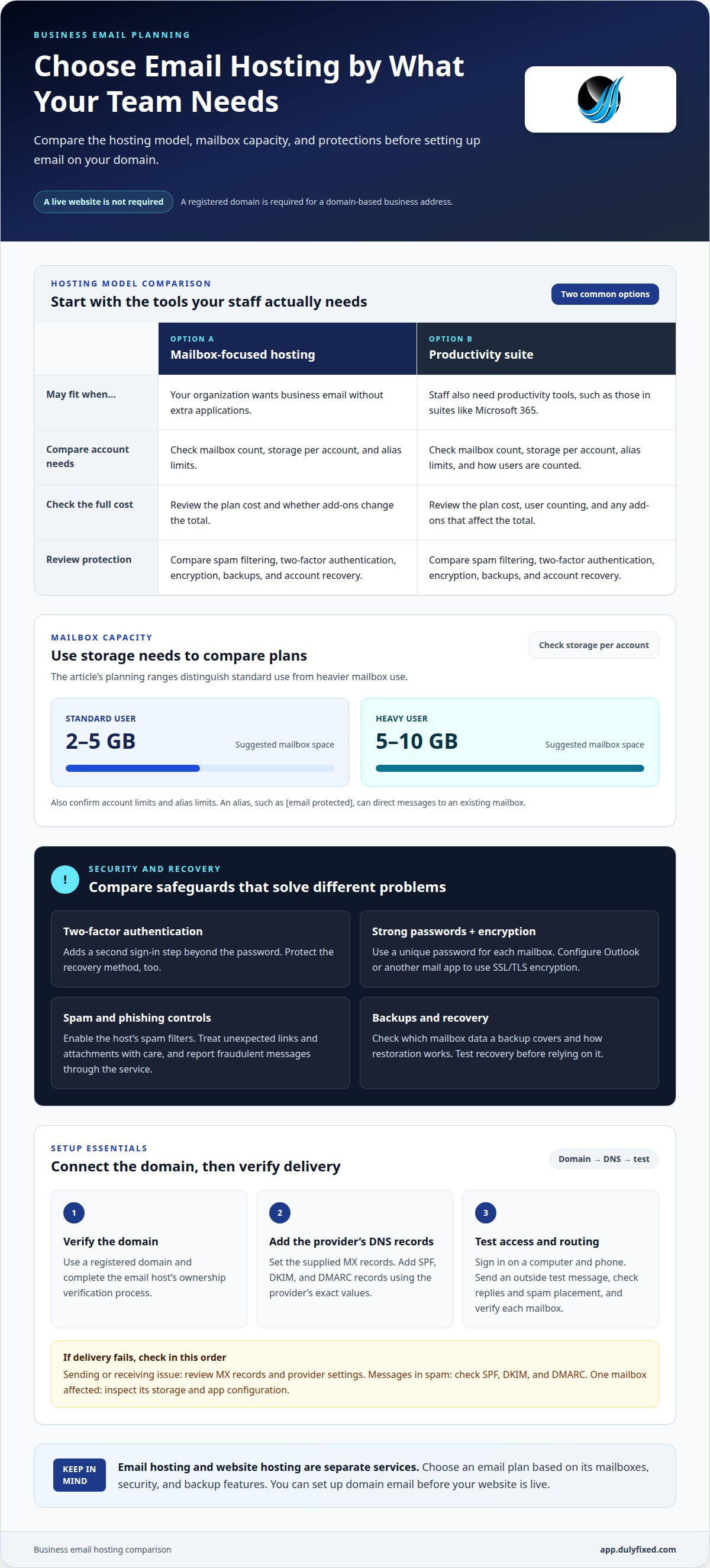
Common setup problems include incorrect DNS records, rejected messages, and mailboxes running out of space. A business email hosting setup works best when the plan’s account limits and delivery features match how your organization sends and receives mail.
- Choose the hosting model. Compare mailbox-focused hosting with suites such as Microsoft 365. A suite may suit staff who also need productivity tools, while a mailbox-focused plan may fit organizations seeking business email without extra applications.
- Estimate users and storage. Compare mailbox count, storage per account, and alias limits. A standard user may need 2-5 GB; a heavy user may need 5-10 GB. Aliases can direct addresses like [email protected] to an existing mailbox.
- Compare the full plan cost. Check how the provider counts users and whether add-ons change the total. During a business email hosting setup, matching mailbox quantity to actual staff needs can help avoid paying for unused accounts.
- Review protections and recovery. Compare spam filtering, two-factor authentication, encryption, backup options, and account recovery. These features address different needs: filtering screens incoming messages, while backups support restoration after data loss.
- Fix delivery problems methodically. Send a test message to an outside address and reply. If sending or receiving fails, review the MX records and provider settings. If messages land in spam, check SPF, DKIM, and DMARC. If only one account has trouble, inspect its storage and app configuration.
Discuss your website hosting needs
Dulyfixed Small Business Solutions: Managed Web Hosting
Dulyfixed Small Business Solutions provides Managed Web Hosting and technical support for businesses with website hosting and technical needs. If your email setup also involves launching or maintaining a business website, Dulyfixed can help with mobile-first website design and landing page development. Email hosting and website hosting are separate services, so choose an email plan based on its mailboxes, security, and backup features.
For a new website, managed web hosting and maintenance can address the website side of your setup. If you’re building a focused page for a service or campaign, Landing Page Development may also fit.
Contact Dulyfixed Small Business Solutions to discuss your website hosting needs.
Build a Setup That Can Grow With Your Business
Use your new email identity consistently as your business adds services, staff, or customer touchpoints. Decide how public-facing addresses should read and who should manage changes. A clear naming approach keeps future communication organized without requiring a redesign every time your business evolves.
Choose the next improvement that would make day-to-day communication easier. A well-planned business email hosting setup can support a consistent experience as your organization grows.
Contact Dulyfixed Small Business SolutionsStart with the change that will make the biggest practical difference.
Frequently Asked Questions
What do business email hosting plans cost in the United States?
Your total depends on how many users need separate accounts and whether you add storage, backups, or security features. Before selecting a plan, count the people who need mailboxes, not just the public addresses your business wants to display.
How do I choose and register a domain for business email?
Choose a domain that’s easy to spell, pronounce, and connect to your organization’s name. Search for an available name through a domain registrar, register it under a business-controlled account, and ensure renewal notices reach more than one trusted administrator. If the matching name is unavailable, consider a clear variation that customers can still recognize.
How do I set up business email hosting step by step?
First, choose an email host and create its mailboxes. Then add the host’s required DNS records at the domain registrar, configure email access on staff devices, and test messages in both directions. Record who owns the account and administers DNS so future password changes, staff transitions, or host changes don’t depend on one person’s memory.
How do I create business email accounts, aliases, and shared mailboxes?
Create an individual account for each person who needs a private inbox, such as [email protected]. Use an alias when another address, such as [email protected], should deliver to an existing inbox. A shared mailbox suits a team that needs to read and respond from one common address; assign access by role instead of sharing a password.
What security and compliance features should business email hosting include?
Look for two-factor authentication, spam and phishing filters, encrypted connections, backup options, and account recovery controls. For compliance, first identify the types of information your organization handles and the rules that apply to that data and location. Set access permissions accordingly, and ensure mailbox retention and recovery practices match your organization’s responsibilities.
Website maintenance and support
Describe the website issue and agree on the support scope before work begins.